View related contents
Now we will calculate the grand total of marks, by using follwing steps.

To calculate the percentage and express result in spreadsheet we will follow the sequence as:
- Preparing structure in spreadsheet for data entry
- Data entry
- Use formula to fina grand total and percentage
- Determine the result (First class, Second class, Pass class or Fail)
[Contributed by administrator on 15. März 2018 14:59:30]
Determining Result:
Information on IF operator:
"If Rohan has Rs. 10 then he will get an orange otherwise he will get a banana."
So in this example first we have to check whether Rohan is having Rs. 10 or not.
If yes then he will get an orange otherwise he will get a banana.
How to use "IF" in spreadsheet to determine the reult:
Depending on the test it will give "then value" or "otherwise value"
- Once we are done with the calculation of percentage, depending on this percentage we can determine the result whether it is "First Class" or "Second Class" or "Pass Class" or "Fail
- In spreadsheet we can do this kind of logical checking using one of the logical operators "IF".
Information on IF operator:
- The operator IF works same as we generally use " if " in regular conversation.
"If Rohan has Rs. 10 then he will get an orange otherwise he will get a banana."
So in this example first we have to check whether Rohan is having Rs. 10 or not.
If yes then he will get an orange otherwise he will get a banana.
- To use IF operator we should have three values, first "test value" second "then value" and third "otherwise value."
- We can use one IF operator inside other IF operator also this is called as nested usage of operator. There is no restriction on nested usage of IF operator.
How to use "IF" in spreadsheet to determine the reult:
- Firstly we will go to cell "L6" where we want our Result to be displayed
- Now write the formula as
- Press "Enter" button.
Depending on the test it will give "then value" or "otherwise value"
- We should get the result as "First Calss".
Calculating Grand Total:
We have created a structure of mark-sheet in spreadsheet. The data such as subjects and marks for respective subjects are entered.Now we will calculate the grand total of marks, by using follwing steps.
- As we want to calculate grand total of marks, we have to make summation of marks obtained for all the subjects.
- Firstly we will go to cell "J7" where we want our grand total to be displayed
- Now write the formula as "=SUM(" then take mouse pointer to cell "D7" and drag the pointer till the cell "I7", by keeping left mouse button pressed. And press "Enter" button.
- We should get the final grand total as "424"
Calculating Percentage:
Formatting cell for decimal points
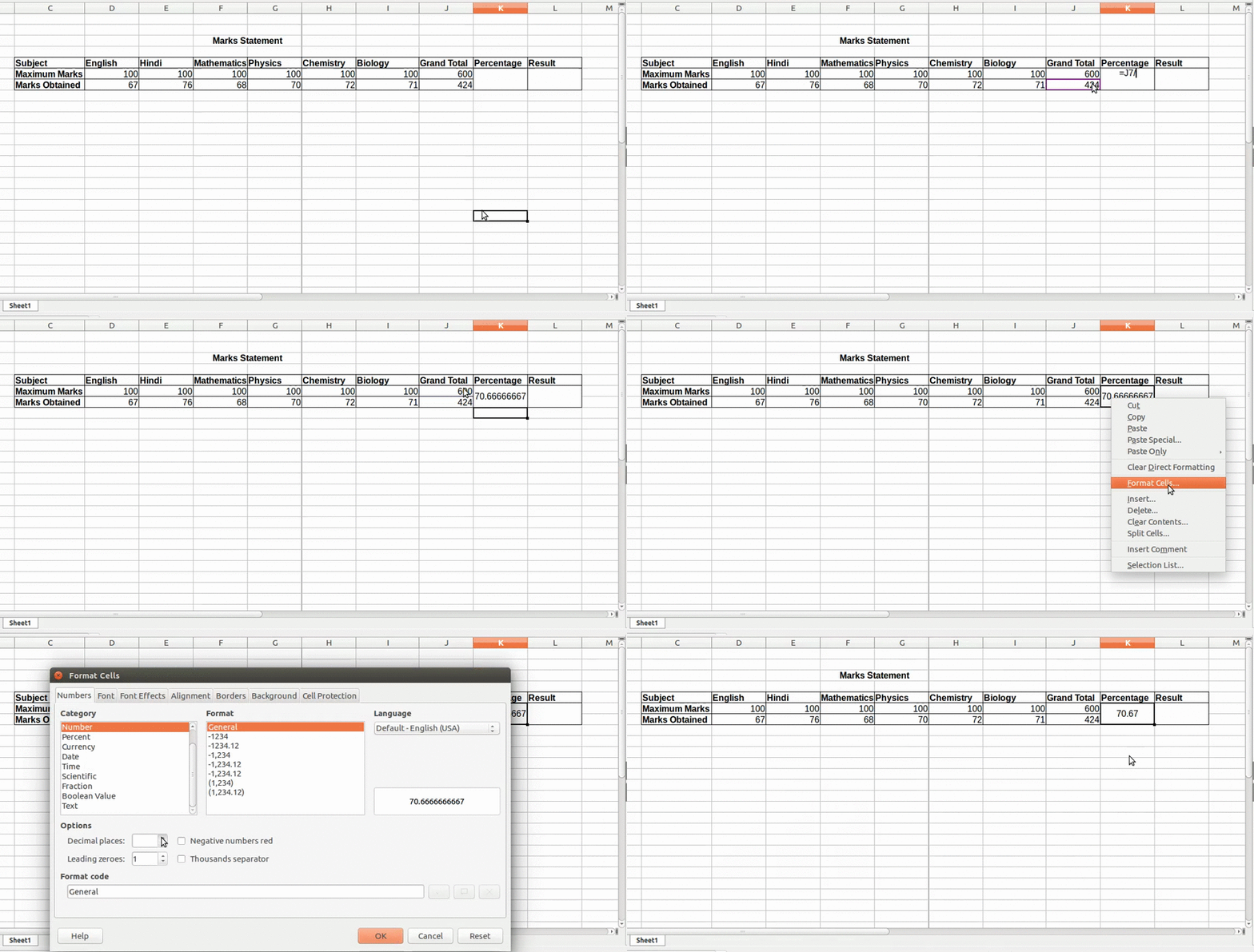
- As we want to calculate the percentage, we have to divide the grand total of marks obtained by grand total of maximum marks then multiply it by 100.
- Firstly we will go to cell "K6" where we want our grand total to be displayed
- Now write the formula as "= (J7 / J6 ) *100. And press "Enter" button.
- We should get the perentage as "70.6666667".
Formatting cell for decimal points
- After calculating percentage, we will see numbers with more than 2 decimal points, which is default setting
- We can change this to show numbers with max 2 decimal points
- For this selecting the percentage cell showing "70.6666667".
- Then right click mouse and select Format Cells option
- A pop-up will get opened with Number as selected category
- Then go to Decimal Places in Options and replace 0 by 2 either by using upper arrow
- Press "OK" to apply the change
- Now you will see numbers with only two decimal points in Percentage cell.